 amberline
How to Print a Certificate Overview From Your Dashboard
Some things still work better on paper. A printed list of expiring certificates pinned above the kettle. A monthly calendar taped to the site office wall. A compliance summary handed to the project manager before Monday's meeting.
Amberline now has a Print button on three dashboard pages — Calendar, Due Soon, and Certificates. One click, and you get a clean, branded printout with no buttons, no filters, and no clutter. Just the information that matters.
Where to find the Print button
The Print button appears on three pages:
- Calendar — top right, above the month grid
- Due Soon — next to the attention count
- Certificates — next to the Add Certificate button
It looks like this:
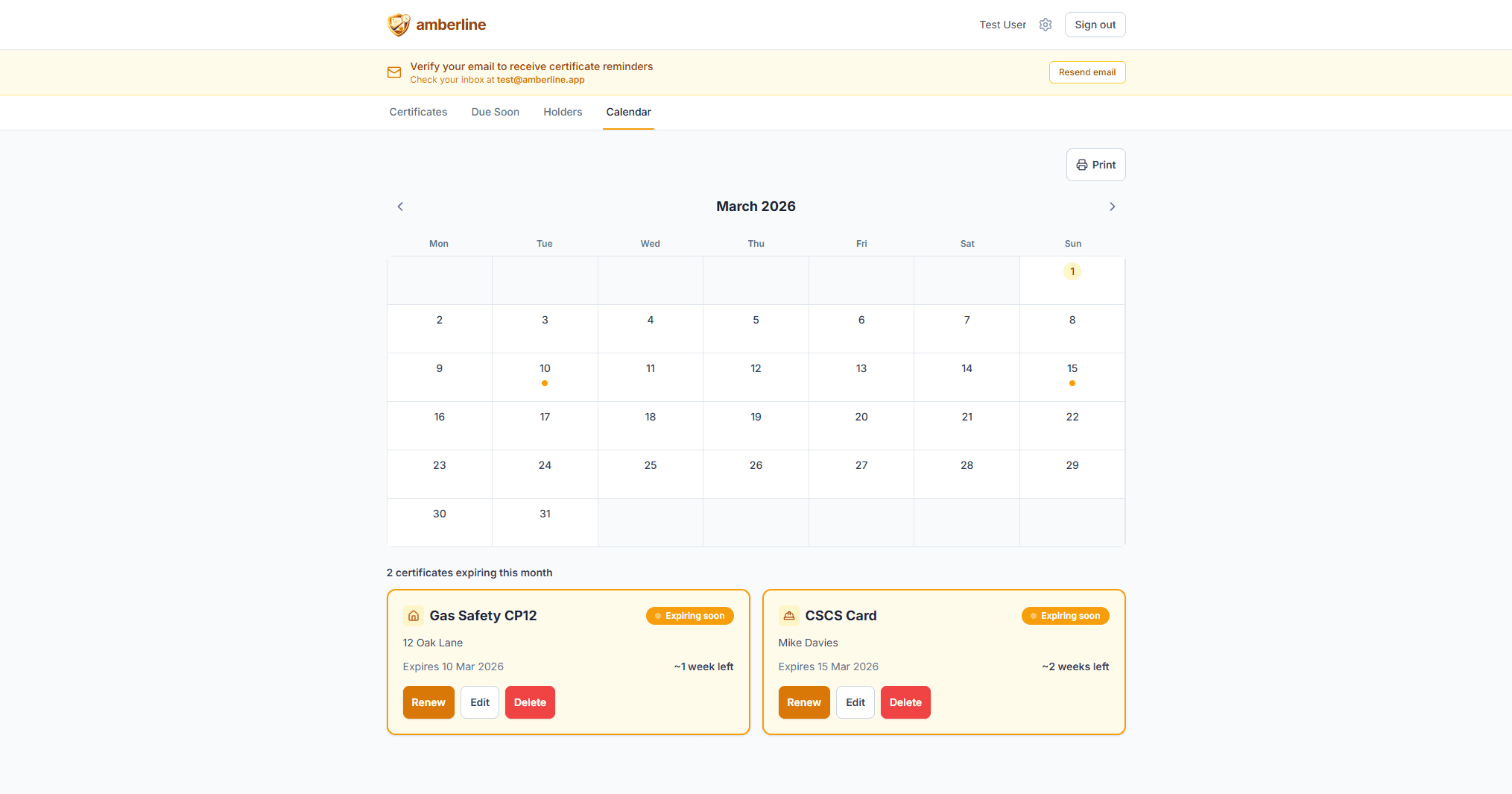
Tap Print, and your browser's standard print dialog opens. Pick your printer (or save as PDF), choose portrait or landscape, and hit Print. That's it.
What the printed page looks like
The printout is designed to be useful on paper, not just a screenshot of your screen. Here's what changes:
- Branded header — the Amberline logo, page title, and the date you printed it. Useful when the printout gets passed around and someone asks "when was this from?"
- No buttons or controls — search bars, filters, sort dropdowns, edit/delete buttons — all stripped out. You're left with just the certificate data.
- Coloured status indicators preserved — the traffic-light dots and borders print in colour if your printer supports it. If you're printing in black and white, each certificate also shows a text status label ("Expired", "Expiring", or "Valid") so nothing is lost.
Printing the Calendar
The Calendar page is the most useful one to print. You get a month-at-a-glance grid showing which days have certificates expiring, plus a summary table underneath listing every certificate for that month — name, holder, reference number, expiry date, and status.
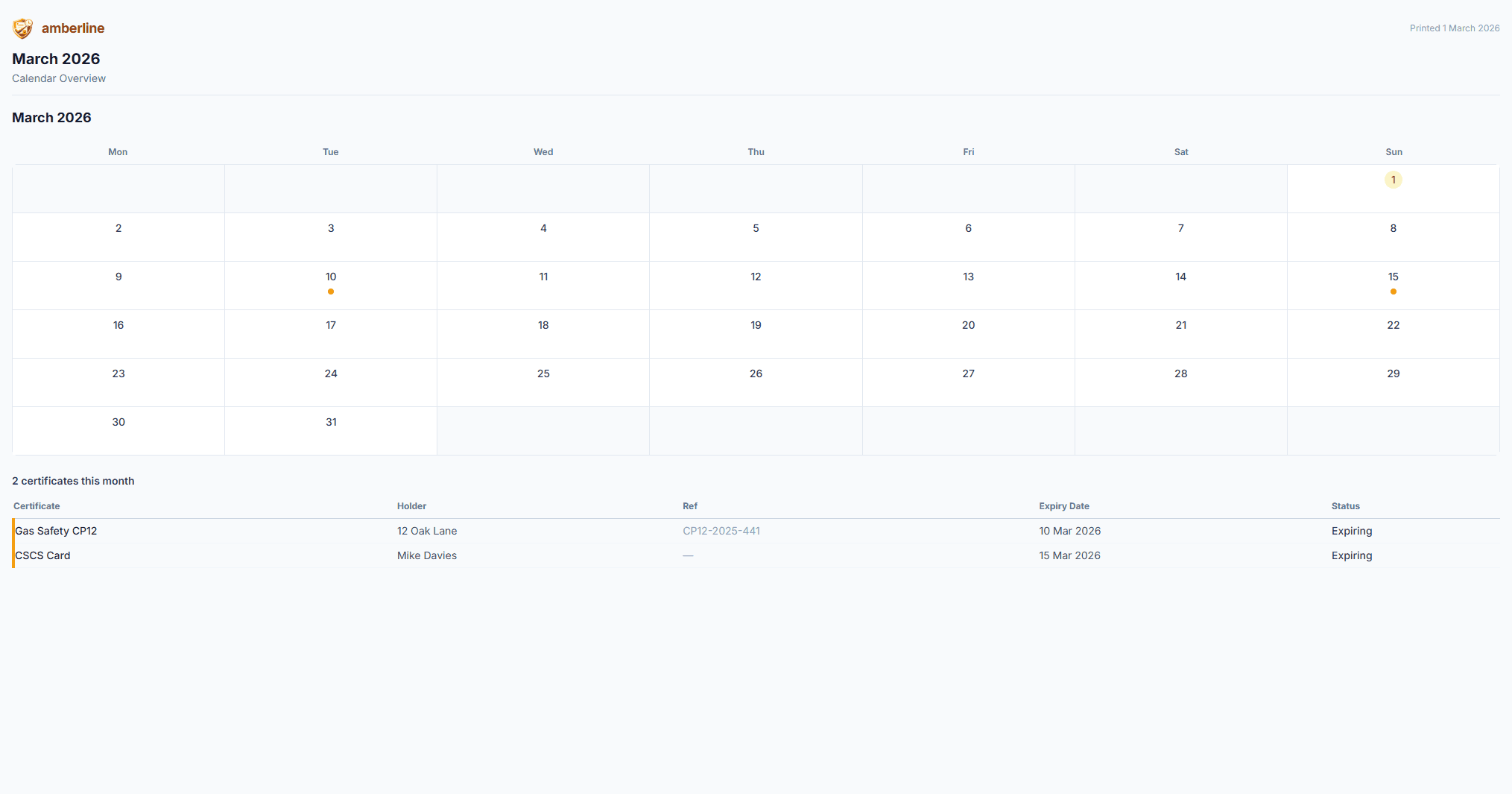
Pin this to the office wall at the start of each month. Anyone can glance at it and know what's coming up — without needing to log in.
Printing Due Soon
The Due Soon page prints all urgency groups expanded — Overdue, This Week, This Month, and Coming Up — even if you had some collapsed on screen. Every certificate that needs attention is visible on the printout.
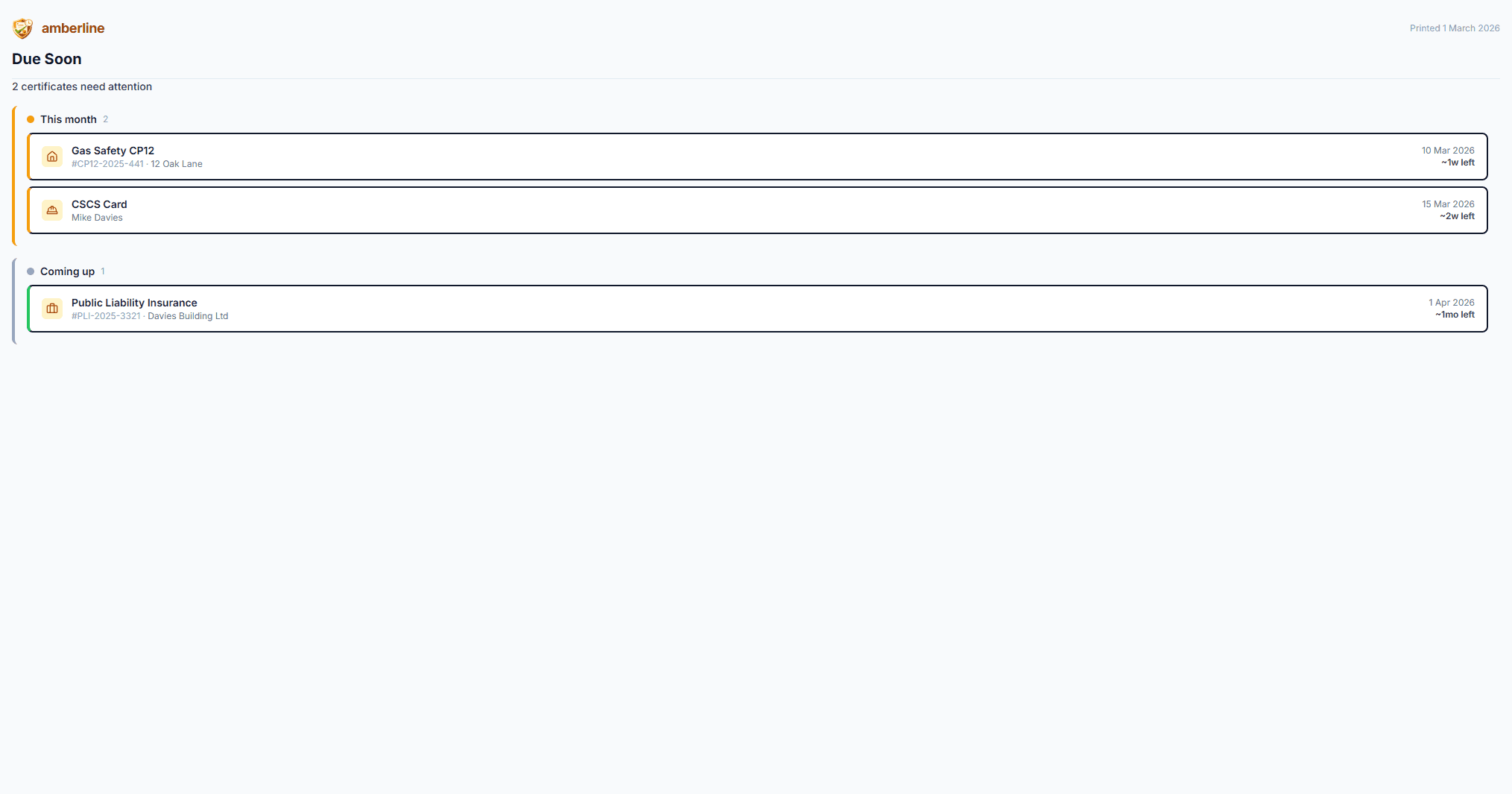
This is the one to hand to a site manager or office administrator. It answers the question "what do we need to sort out in the next 90 days?" in a single page.
Printing the Certificates page
The main Certificates page prints your full certificate list with the traffic-light status cards. The overview stats (expired, expiring, valid counts) are preserved, so the printout doubles as a compliance summary.
Filters and search are stripped from the printout. Whatever certificates are currently visible on screen when you hit Print is what gets printed — so if you've filtered to a specific holder or category, only those certificates appear.
Tips for better printouts
- Use landscape for the Calendar. The month grid fits better sideways on A4 paper.
- Use portrait for Due Soon and Certificates. The list format works well in portrait.
- Save as PDF if you need to email the overview instead of printing it. Your browser's print dialog has a "Save as PDF" option.
- Filter first, then print. On the Certificates page, narrow down to a specific holder or category before printing. This gives you a focused printout — all of Mike's certificates, or all Property certificates — rather than everything at once.
- Print monthly. Get into the habit of printing the Calendar overview on the first of each month. Pin it up, and you'll never be caught off guard by an expiry date.
No PDF generation, no downloads — just print
We deliberately kept this simple. There's no server-side PDF generation, no download buttons, and no file management. Your browser already knows how to print and save PDFs. We just made sure the page looks good when it does.
The Print button is available on all plans, including Free. If you're tracking certificates in Amberline, you can print them.
See how Amberline works for your industry: Construction | Landlords | Nurseries | Trades
Ready to stop tracking certificates in spreadsheets?
Start free with up to 3 certificates. No card required.
Get started free