 amberline
How to Set Up Certificate Tracking in 5 Minutes
You've been meaning to get your certificate tracking sorted for months. The spreadsheet is out of date, you're not sure if Dave's CSCS card has expired, and the last Gas Safe renewal nearly slipped through the cracks.
Here's the good news: you can have a working certificate tracker — with automatic email reminders — in less than 5 minutes. No setup fees, no training, no IT department required.
Step 1: Sign up (30 seconds)
Head to amberline.app and create a free account. You need an email address and a password. That's it.
No credit card. No "book a demo". No 14-day trial that expires before you've finished evaluating it. The free plan gives you 3 certificates and automatic reminders — enough to try it properly.
Step 2: Add your first certificate (60 seconds)
Tap Add Certificate and you'll see a template picker with pre-loaded certificate types organised by industry:
- Construction: CSCS Card, IPAF Licence, PASMA, First Aid, and more
- Property: Gas Safety CP12, EICR, EPC, HMO Licence
- Trades: Gas Safe Registration, Part P, 18th Edition, OFTEC
- Childcare: Enhanced DBS, Paediatric First Aid, Safeguarding, Food Hygiene
- Business: Public Liability, Employers Liability, Van Insurance, MOT
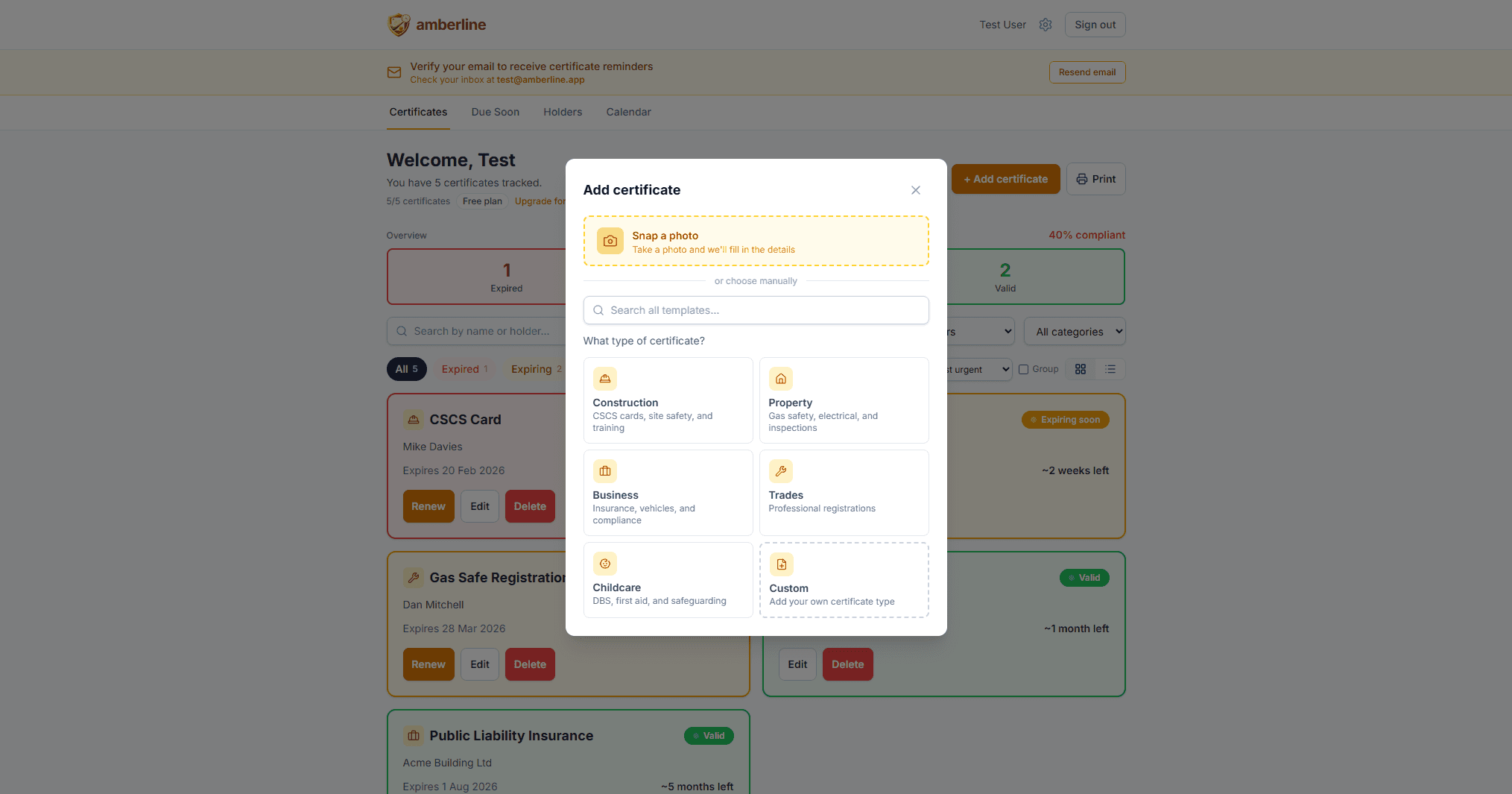
Pick a template, enter the holder (person or property the certificate belongs to) and the expiry date. That's all you need. Notes and document uploads are optional.
Not sure which one to pick? If your certificate type isn't in the list, select Custom and type the name manually. The templates are there to save you typing — they don't restrict what you can track.
Step 3: See your dashboard (instant)
As soon as you save your first certificate, the traffic-light dashboard kicks in. Your certificate will show as:
- Green if the expiry date is more than 30 days away
- Amber if it's within 30 days
- Red if it's already expired
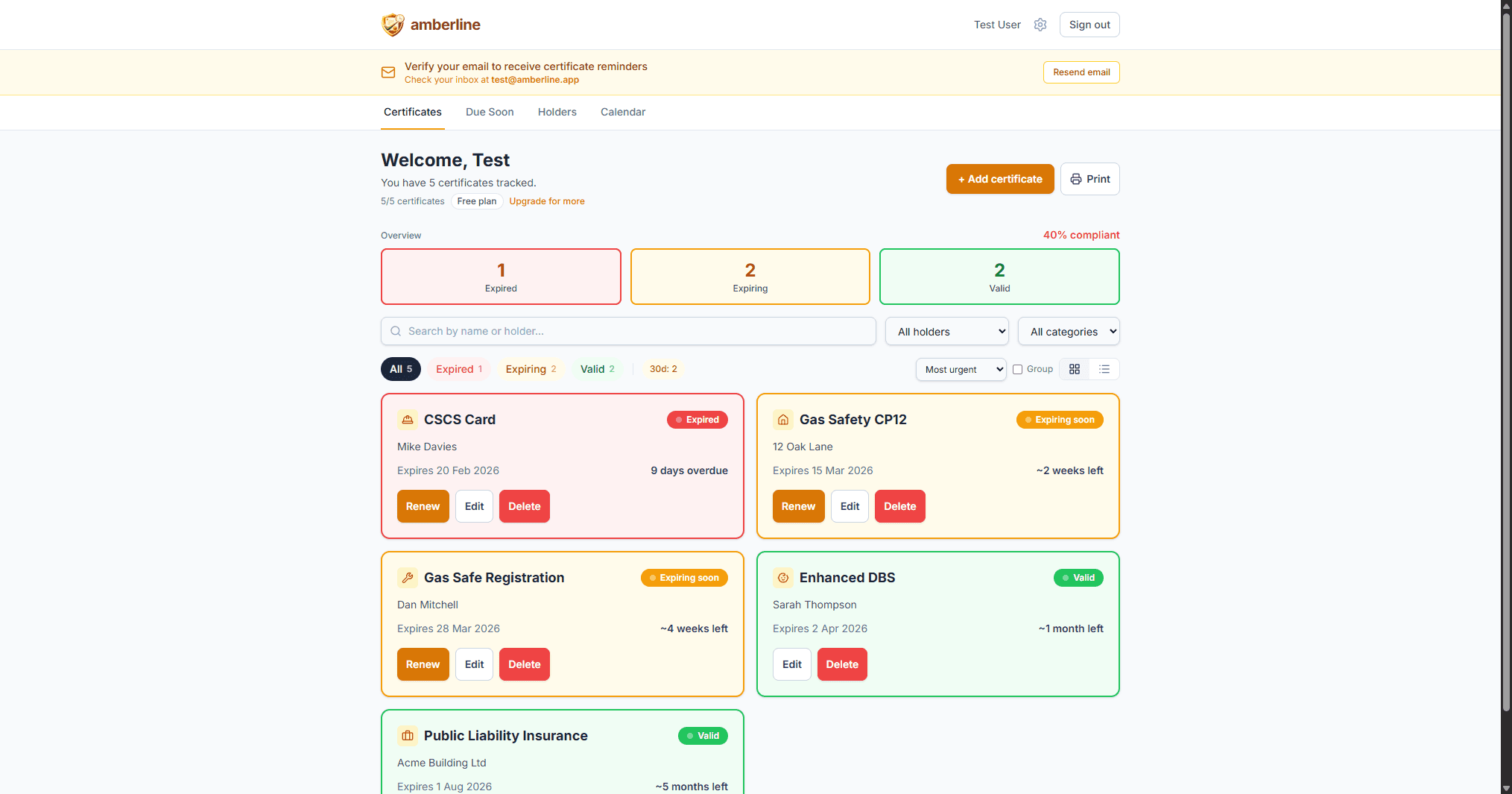
The overview boxes at the top show your counts: how many expired, how many expiring, how many valid. On desktop, you can also filter by status using the pills below the stats.
Step 4: Add the rest (2–3 minutes)
Now add the rest of your certificates. This is where the template picker really saves time — instead of typing out "Construction Skills Certification Scheme Green Card" you just tap "CSCS Card" and fill in the holder and date.
Think about what you're currently tracking (or should be tracking):
- For each team member: What cards and qualifications do they hold? CSCS cards have dropped to 2-year renewals — make sure those are in.
- For each property: Gas safety, EICR, EPC — do you know when each one expires?
- For your business: Insurance policies, vehicle MOTs, professional registrations.
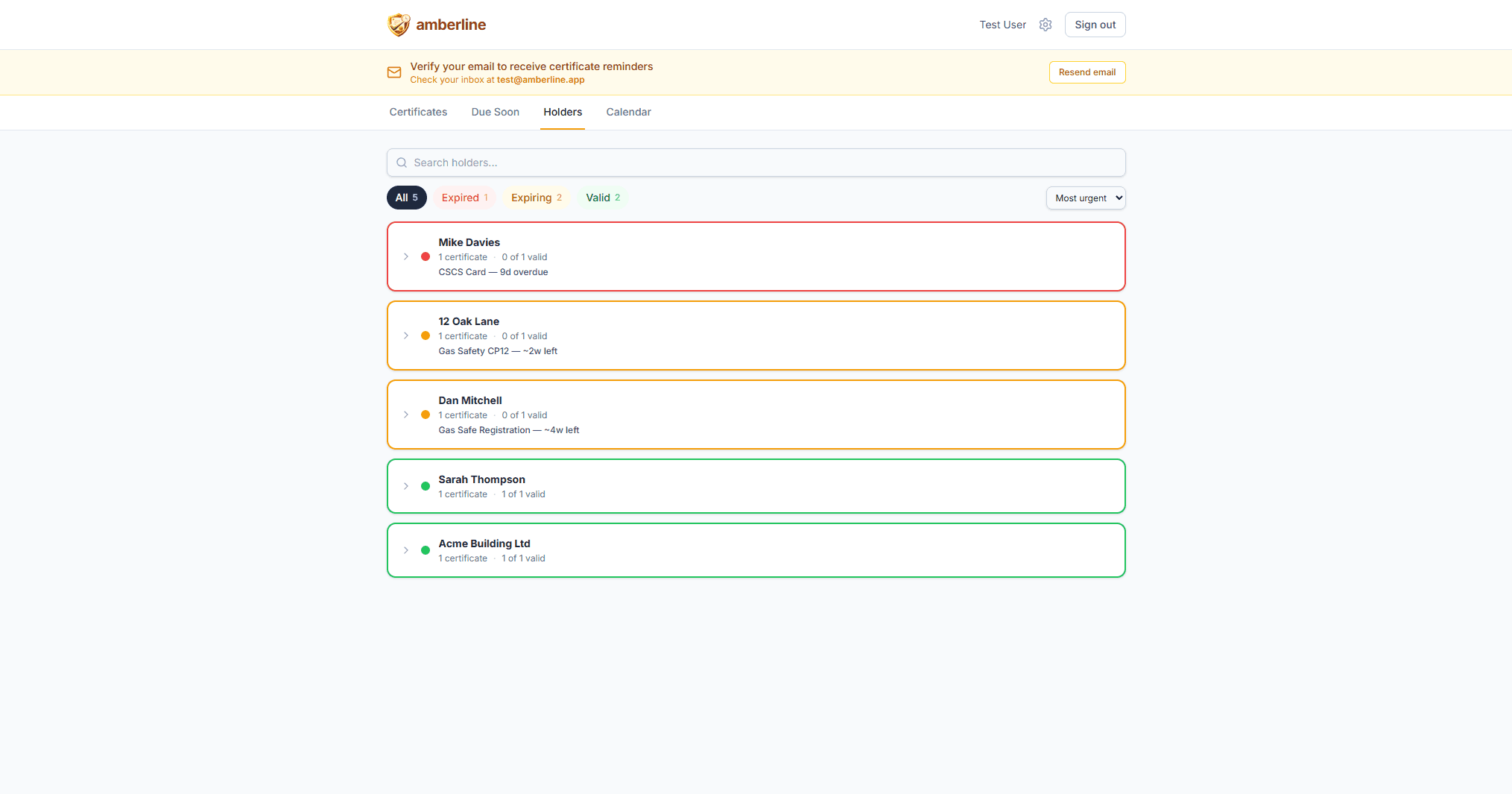
As you add more certificates, the dashboard starts showing its value. The Holders view groups certificates by person or property, so you can see everyone's status at a glance.
Step 5: Let the reminders do the work
This is the step that makes everything else worth it. You don't need to check the dashboard every day (though you can). The reminders come to you.
Amberline sends automatic email reminders at:
- 90 days before expiry — time to plan and book
- 30 days before expiry — time to act
- 7 days before expiry — last chance
- Expiry day — final alert
That schedule covers 95% of situations. The 90-day reminder gives you time to book a training course or schedule an engineer. The 7-day reminder catches anything that slipped through.
Reminders are smart: if you renew a certificate and update the expiry date, the reminder cycle resets automatically. No duplicate emails, no stale alerts.
That's it. You're done.
Five minutes. No spreadsheet maintenance. No calendar reminders to set up manually. No relying on trade bodies to send renewal letters that may or may not arrive.
Your certificates are tracked, your dashboard shows what needs attention, and the reminders will chase you before anything lapses.
What comes next?
Once you've used it for a week or two, you'll notice a few things:
- You stop worrying about renewals. The reminders handle it. You can focus on actual work instead of admin.
- You spot certificates you'd forgotten about. Adding everything to one place often reveals gaps — insurance that expired 3 months ago, a DBS check you never re-did.
- Other people want access. If you're managing a team or properties, the Pro plan gives you unlimited certificates. The Business plan adds multi-user access for up to 10 team members.
The free plan covers 3 certificates — plenty for a sole trader or a landlord with a couple of properties. When you hit the limit, upgrading takes about 30 seconds.
See how Amberline works for your industry: Construction | Landlords | Nurseries | Trades
Ready to stop tracking certificates in spreadsheets?
Start free with up to 3 certificates. No card required.
Get started free